How-to
How to show a discount on the Shopify product page, not just in the cart
You set up an automatic discount in Shopify, but the product page still shows the full price. That's not a bug: Shopify applies automatic discounts in the cart and at checkout. For crossed-out prices on the product page, the Shopify Help Center points to apps. This guide covers the ways to show a discount there and where each one stops.
1 Why Shopify doesn't show the discount on the product page
According to Shopify's Help Center, automatic discounts are applied in the cart and at checkout once the conditions are met. The product page shows the price set on the product. To display discounts in a theme, Shopify's theme docs only name objects from the cart, checkout and order: the lines in the cart and the discounts allocated to them. A product that isn't in the cart yet has no such line.
For crossed-out prices from discounts on product and collection pages, the Help Center names two routes: a third-party discount app, or a custom solution built by a Shopify Partner. At checkout, Shopify always shows the savings with a crossed-out price.
For your shoppers, that means anyone who doesn't know about the tiers only sees them after clicking “Add to cart”. In tests by the Baymard Institute, one participant added an item to the cart just to find out how big the discount was.
2 A compare-at price and a discount are two different things
Without an app, Shopify shows a crossed-out price through the compare-at price. You enter the original price as the compare-at price on the product or variant, and the sale price as the price. Your theme can then show both amounts on product and collection pages; at checkout only the sale price appears.
Shopify keeps the two apart explicitly: using sale prices is different from setting up discounts. A sale price applies without conditions, to any quantity. Tiers such as “10% off 3 or more”, a bundle or a free gift over a cart value can't be built with it.
In the EU, a price reduction announced as a percentage must be calculated from the lowest price of at least the previous 30 days, according to the EU Court of Justice. In the US, the FTC's Guides Against Deceptive Pricing only treat a former price as genuine if you actually offered the item at it, on a regular basis, for a reasonably substantial period. So a compare-at price raised just before a sale promises a saving that isn't real. This is not legal advice.
| Feature | Compare-at price | Discount |
|---|---|---|
| What you enter | original price on the product | condition and amount in the discount |
| On the product page | crossed-out price, if your theme shows it | only with an app or a custom solution |
| At checkout | only the sale price | savings with a crossed-out price |
| Quantities, sets, thresholds | no | yes |
3 The ways to do it in your theme, and where each one stops
A text block in the theme editor. Themes like Dawn have a text block for the product page. You can write “10% off 3 or more” below the price there, without code. But the block doesn't calculate anything and doesn't know whether the discount still applies.
Your own theme code. A developer can calculate the discount in Liquid next to the price. The discount in Shopify and the number in the theme then live in two places. If you change the discount or let it expire, the theme keeps showing the old offer until someone updates it by hand. Theme updates add to that: Shopify only carries your code edits over to an update if they don't conflict with the new version. Otherwise you copy them across yourself.
An app with a theme block. The block sits next to the price in the theme editor and reads its values from the app. According to Shopify, app blocks only work with compatible themes. If a section supports them, the block picker shows an Apps group.
| Route | What it does | Where it stops |
|---|---|---|
| Compare-at price | crossed-out price without an app | no conditions, no tiers |
| Text block in the theme editor | a note without code | no calculation, doesn't end with the discount |
| Your own theme code | discount next to the price | a second place to update with every change |
| App with a theme block | discount with prices, placed in the theme editor | only shows the discounts the app knows |
4 Put the discount right next to the price
Baymard recommends showing offers close to the price in the buy section and keeping everything about the price together. In testing, some users missed offers placed away from the price, or doubted the offer was genuine.
Show the saving both as an amount and as a percentage if there's room. If there's only room for one, Baymard suggests the larger number: for an item marked down from $20 to $15, “25% off” reads stronger than “$5 off”. For one marked down from $1,000 to $900, “$100 off” reads stronger than “10% off”. More on how numbers come across is in our guide to price psychology.
5 What the Hand-E AI Discounts widgets show
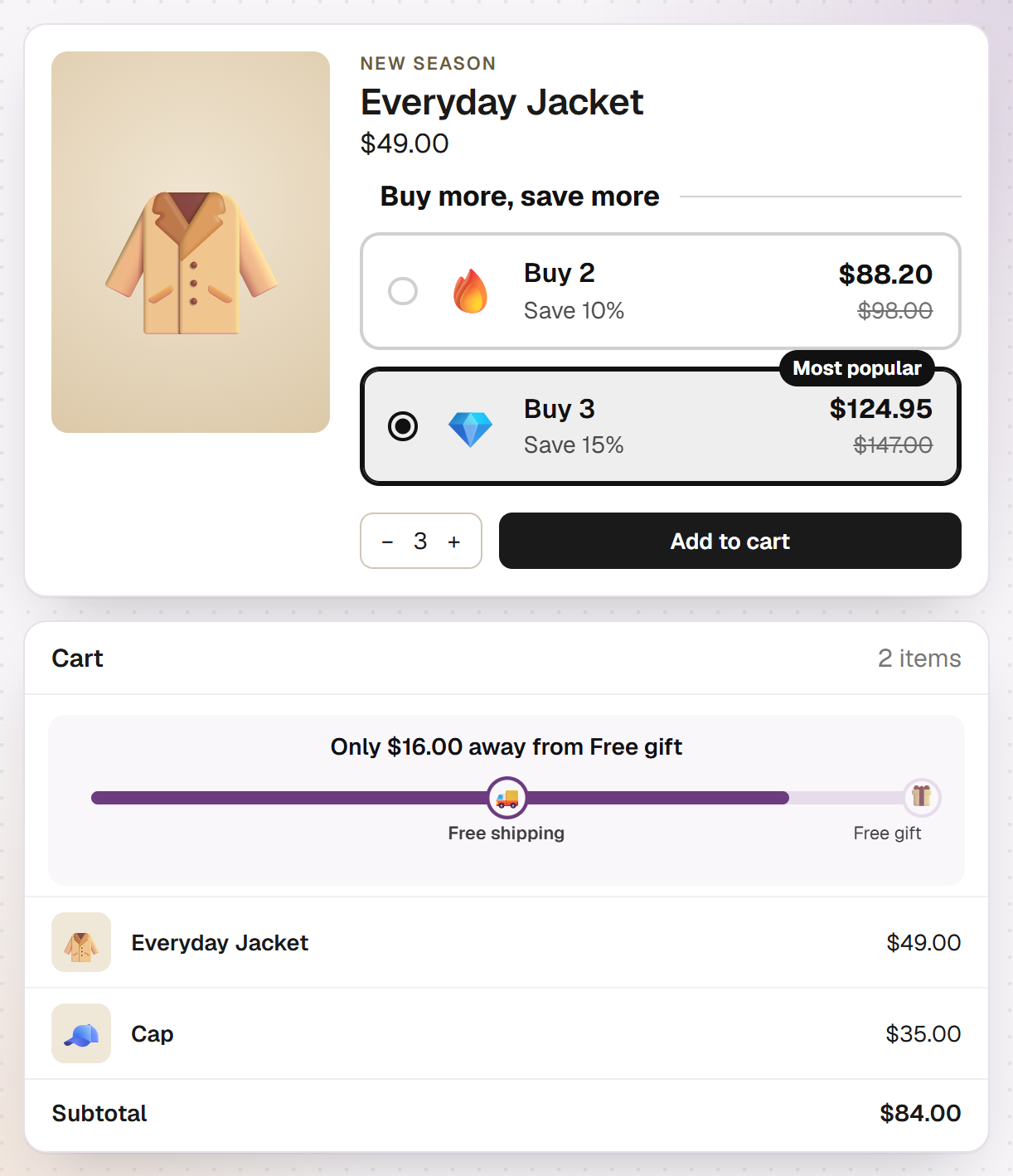
A widget shows a discount you created in Hand-E AI Discounts: volume tiers, cart value tiers, a bundle or a free gift over a cart value. It takes the thresholds and amounts from the discount, so you don't copy any tiers by hand. When you change the discount, the app updates the widget to match.
For volume tiers, each tier shows the price for that quantity, with the price without the discount crossed out next to it. The widget uses the price of the variant that's currently selected. If your shopper switches variants, the widget recalculates.
Clicking a tier sets the quantity in your theme's product form. Your shopper still adds to the cart themselves. For a bundle, a button can add every item of the set to the cart at once. Free gift and cart value tiers can show a bar with how much is left until the next threshold.
If the discount has ended or hasn't started yet, the widget hides itself. For the cart there's a separate progress bar with up to five goals, such as free shipping and a free gift.
- Seven templates and three layouts: cards, tiles or list
- Colors from your theme or your own, plus emojis and your own images per tier
- If the discount applies to certain products or collections, the widget only shows there
6 How to add the widget to your product page
You create a widget for a discount that already exists in the app. How to set up tiers with several steps is covered in Shopify tiered pricing.
- Create the discount in Hand-E AI Discounts, with one sentence in the AI assistant or in the form under “New discount”.
- Open “Widgets”, pick the type and your discount under “New widget”, and click “Create widget”.
- Choose a template and adjust texts, colors and emojis. The preview shows the widget with sample numbers.
- Click “Open in theme editor”. The “Show discount” block is then on your product page. Drag it below the price and save the theme.
- Set the widget to “Live” in the app. On “Draft”, your store shows nothing. If the block stays empty, it tells you why in the theme editor, for example when no widget matches this product. Your shoppers don't see that note.
7 What the widgets can't do
- The widget doesn't show discounts you created in the Shopify admin. Nor does it show discount codes, simple percentage or amount discounts, or free shipping, even if the AI assistant created them. Widgets exist only for volume tiers, bundles, cart value tiers and free gifts.
- The price at the top of the product page stays the full price. The widget sits below it, and checkout takes the discount off.
- The widget only works out prices per quantity for volume tiers. Bundles, cart value tiers and free gifts show the discount and the thresholds.
- The widget belongs on the product page. On collection pages and in product cards, the app shows no discounted prices.
- A fixed amount only applies in its own currency. If someone buys in another currency, the widget shows no price for that tier, because checkout gives no discount there.
Sources
- Shopify Help Center: Automatic discounts(opens in a new tab)
- Shopify Help Center: Setting sale prices for products (compare-at price, crossed-out prices)(opens in a new tab)
- Shopify Developers: Discounts in themes(opens in a new tab)
- Shopify Help Center: Extend your theme with apps (app blocks)(opens in a new tab)
- Shopify Help Center: Updating themes (code edits)(opens in a new tab)
- Baymard Institute: How to Display Price Discounts on the Product Page (2022)(opens in a new tab)
- Court of Justice of the EU: Press release 152/24 on case C-330/23 (2024)(opens in a new tab)
- 16 CFR 233.1: Former price comparisons (Legal Information Institute)(opens in a new tab)
Common questions
Why doesn't Shopify show my automatic discount on the product page?
Is a compare-at price the same as a discount in Shopify?
Can Hand-E AI Discounts show discounts I created in Shopify?
Do I need to edit my theme code to show a discount widget?
Related reads
Optimize your product page
Images, price block, shipping, tiers and reviews: what belongs on the product page, with research behind each point.
Read moreMultiple quantity breaks don't fit in one discount
In Shopify's discount form, you set one minimum purchase requirement with one value. So each discount has one threshold. For 10% off 5 or more items and 15% off 10 or more, you need two separate automatic discounts. Or you use an app that keeps every tier in one discount.
Read moreIncrease average order value
Thresholds from your own order data, visible tiers, relevant add-ons: eight levers with evidence.
Read more